MCP server

Connect your AI to your lab over MCP

A chat AI can explain a network; over MCP it can see one. It reads the routes, ARP tables and packets of real Linux machines, runs commands with your say-so, and every step shows in your timeline. Hack the Route connects to no AI provider: bring the app you already use.

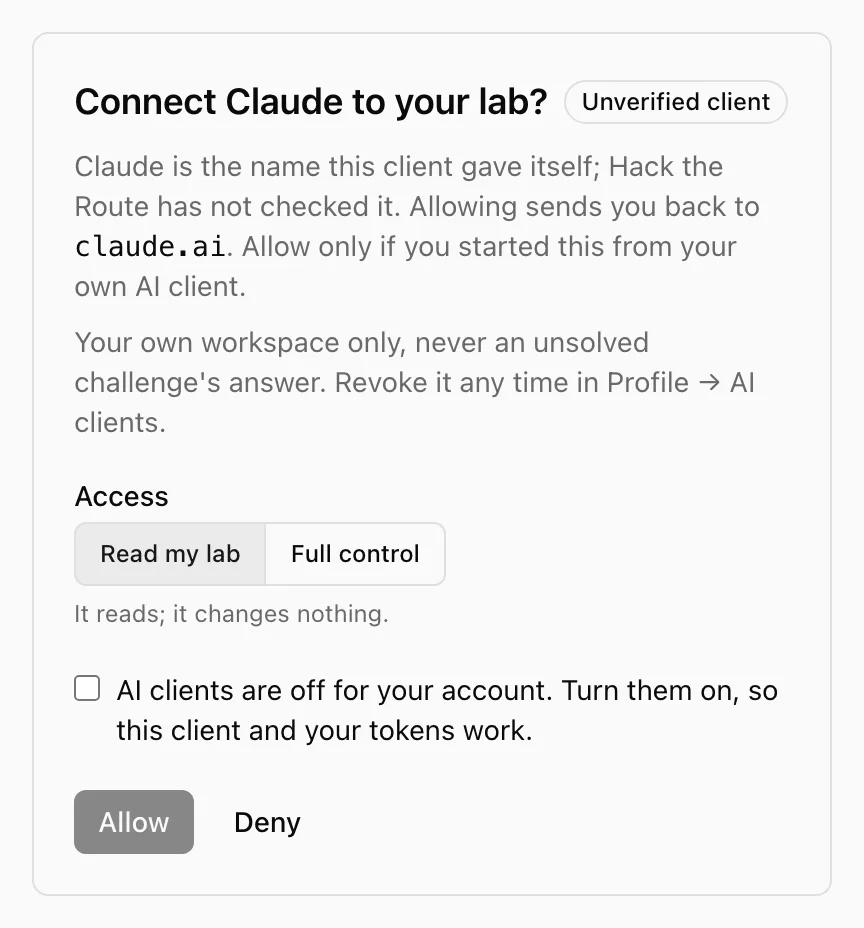
Consent screen
The consent screen: Connect Claude to your lab? with the choice of Read my lab or Full control, and a box to turn AI clients on

Connect

Three steps

  1. Copy the URL

    Your lab's MCP server is https://app.hacktheroute.com/mcp.

  2. Add it as a connector

    In your AI app, add a custom connector (an MCP server) with that URL. The app asks you to sign in.

  3. Sign in and approve

    Sign in to Hack the Route, choose Read my lab or Full control, and approve. Your AI can now see your lab.

https://app.hacktheroute.com/mcp

Access

What your AI can do

You pick one when you approve. Read my lab is chosen first.

Read my lab

It reads; it changes nothing.

  • The lab's state and its topology: machines, links and networks
  • A device's routes, ARP table, open sockets and firewall rules
  • Captured packets on every link
  • The lab's steps, the terminals and your progress
Full control

Everything Read my lab sees, and it acts.

  • Run commands on the lab's devices
  • Start, reset and stop labs
  • Switch faults on and off
  • Build and edit labs of your own

Build labs of your own

With Full control, your AI can build a network for you to work on, or you build it yourself on the map. It is saved to your account under My labs, and your own labs are free for every signed-in user.

Timeline

Watch what it did, then replay it

The workspace's Timeline is a live feed of everything that happens in your lab, with who did it: your commands, the AI app's actions, lab changes, faults and the steps you passed. Replay a session later with the map as it was at each step.
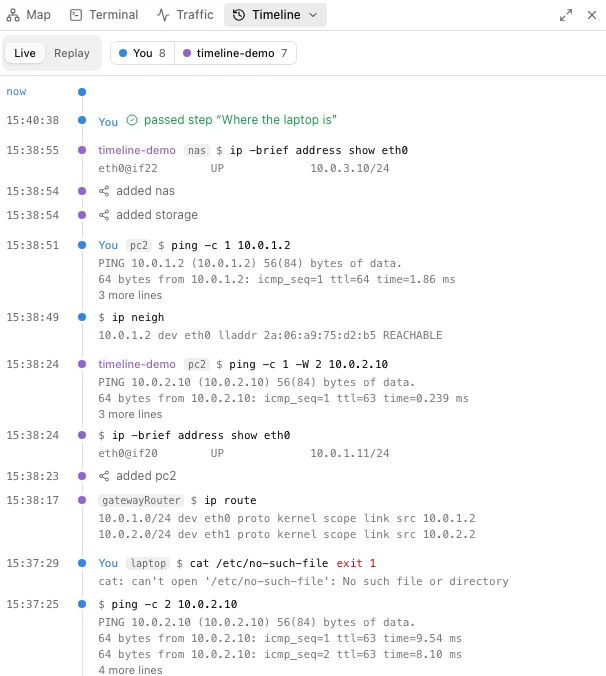
Timeline · You and a connected app
The workspace Timeline, live: commands run by You and by a connected app named timeline-demo, each with its output, plus the machines it added

Safety

You stay in charge

Off by default

AI access stays off until you turn it on, and no app reaches your lab before that. Turning it off disconnects every app at once.

Never an unsolved challenge's answer

The app gets no answer to a challenge you have not solved, and AI help on a challenge is recorded.

Your own workspace only

An app reaches your lab and nothing else. Every app you connected is listed in Profile → AI clients, where you revoke it.

Your AI, not ours

Hack the Route connects to no AI provider. You bring the AI app you already use, on your own account.

Set up

Steps for your app

The same steps are in the app, under Profile → AI clients, with copy buttons. Apps move their menus now and then; if a step does not match, look for "custom connector" or "MCP server".
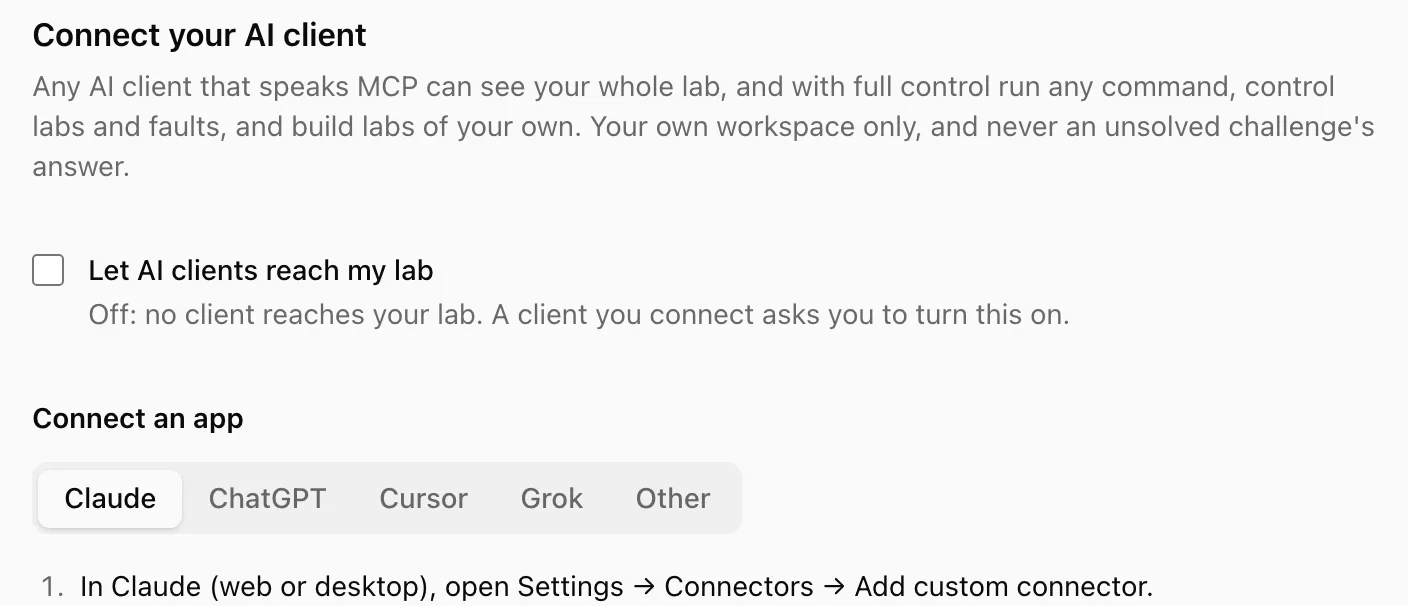
Profile · AI clients
Profile, AI clients: the switch to let AI clients reach your lab, off, and a guide for Claude, ChatGPT, Cursor, Grok and Other
Claude
  1. In Claude (web or desktop), open Settings → Connectors → Add custom connector.
  2. Name it “Hack the Route” and paste this URL, then Add.
    https://app.hacktheroute.com/mcp
  3. Press Connect, sign in here, choose Read my lab or Full control, and Approve.
  4. In Claude Code instead, run this, then type /mcp in Claude Code to sign in.
    claude mcp add --transport http hacktheroute https://app.hacktheroute.com/mcp
ChatGPT
  1. In ChatGPT, open Settings → Apps & Connectors → Advanced, and turn Developer mode on.
  2. Press Create, name it “Hack the Route” and paste this URL.
    https://app.hacktheroute.com/mcp
  3. Set Authentication to OAuth and press Create.
  4. Sign in here, choose Read my lab or Full control, and Approve.
Cursor
  1. Add this to ~/.cursor/mcp.json (merge it into mcpServers if the file has others).
    {
      "mcpServers": {
        "hacktheroute": {
          "url": "https://app.hacktheroute.com/mcp"
        }
      }
    }
  2. In Cursor, open Settings → MCP and press Login next to hacktheroute.
  3. Sign in here, choose Read my lab or Full control, and Approve.
Grok
  1. If your Grok app offers a custom connector, add one with this URL and sign in when it asks.
    https://app.hacktheroute.com/mcp
  2. Otherwise, use the xAI API: make a personal token under Advanced below.
  3. Add this tool to your request's tools, with your token in place of YOUR_TOKEN.
    {
      "type": "mcp",
      "server_url": "https://app.hacktheroute.com/mcp",
      "server_label": "hacktheroute",
      "headers": {
        "Authorization": "Bearer YOUR_TOKEN"
      }
    }
Other
  1. Any app that takes an MCP server URL and signs in with OAuth: paste this URL, then sign in here and Approve.
    https://app.hacktheroute.com/mcp
  2. If the app cannot sign in, make a personal token under Advanced below and send it as a Bearer header.

Other ways in

Personal tokens
For an app that cannot sign in with OAuth: make a token in Profile → AI clients → Advanced and send it as a Bearer header.
On your own machine
Running labs locally with the netlab CLI? netlab mcp serves the same tools over stdio.

Questions

Why pay when I already have ChatGPT or Claude?
A chat AI can explain networking, but it cannot see a network or touch one. Connect it to your lab and it reads real routes, ARP tables and packets, runs real commands on real Linux machines, and you watch and replay everything it did. Bring the AI you already pay for: Hack the Route connects to no AI provider.
Which AI apps can connect?
Any app that supports MCP connectors with OAuth sign-in, for example Claude, ChatGPT or Cursor: add https://app.hacktheroute.com/mcp and sign in. An app that cannot sign in can use a personal token.
Can the AI give me a challenge's answer?
No. The app gets no answer to a challenge you have not solved, and AI help on a challenge is recorded.
Can I see what the AI did?
Yes. The workspace's Timeline shows everything that happens in the lab with who did it: your commands, the AI app's actions, lab changes, faults and the steps passed. Replay it later with the map as it was at each step.
Is it on by default?
No. It stays off until you turn it on, from the consent screen or Profile → AI clients. Turning it off disconnects every app.
Does it cost extra?
No. Connecting an AI app comes with every account and reaches the labs your plan opens, and the labs you build are free for every signed-in user. Your AI app's own plan is between you and its maker.

Learn it on real machines.

Every lab is a small network of real Linux machines in your browser. Start with a free account: Google or email, no card.

Start free