 Hack the Route Start learning Open app
The idea
A VPC has more ways in than its internet gateway. Join an office to it over a site-to-site VPN, and find the route the tunnel needs on the cloud's side. Then put a load balancer in front of two servers that have no public address at all.
Steps
-
A tunnel with no way back
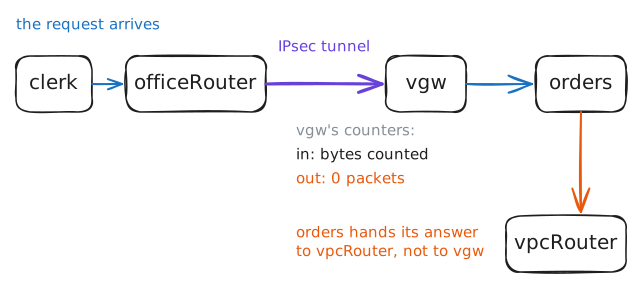
Priya runs Lumen Books, an online bookshop, in a VPC. The orders service,
orders, sits in the private subnet at10.0.1.10, port 8080, with no public address. Now the office wants it too.So the VPC got a VPN gateway,
vgw, and the office's Router holds a site-to-site tunnel to it: IPsec, encrypted between the two routers across the internet. AWS calls it a virtual private gateway, Azure a VPN gateway.Both ends are set up, and the tunnel comes up by itself the moment traffic needs it.
Ask
ordersfor its page fromclerk, a laptop in the office. Then askvgwwhat went through the tunnel.clerk:~# curl -sS -m 3 http://10.0.1.10:8080/ vgw:~# swanctl --list-sas
-
Show the route table the way
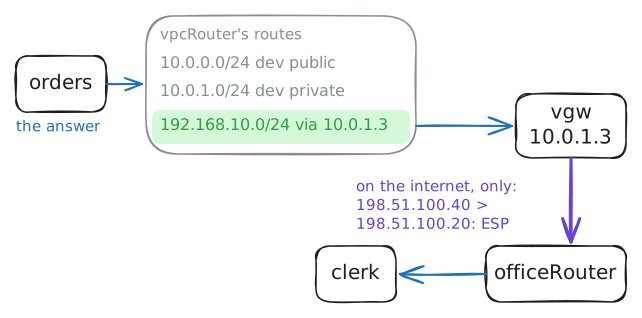
Every subnet in a VPC has a route table, and
vpcRouterholds this VPC's. Read it.The fix in a cloud is one route: destination
192.168.10.0/24, the office, with the VPN gateway as its target. Here the target isvgw's address in the private subnet. Add it, then ask for the orders again while the lab records everything that passes between the office's public address,198.51.100.20, andvgw.vpcRouter:~# ip route vpcRouter:~# ip route add 192.168.10.0/24 via 10.0.1.3 clerk:~# curl -sS -m 3 http://10.0.1.10:8080/
-
One address for two servers
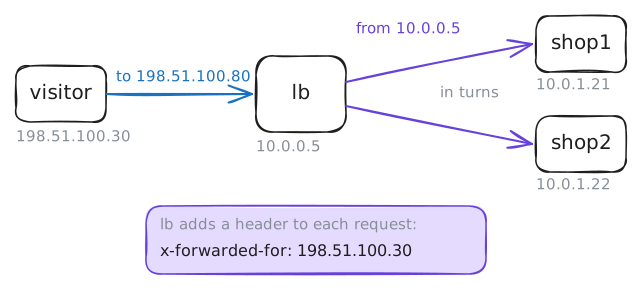
Customers visit the shop at
198.51.100.80. That'slb, a load balancer. The two shop servers behind it,shop1andshop2, sit in the private subnet with no public address at all, solbis the only way in.lbhas a card in the public subnet too,10.0.0.5, and passes each visit to one of the servers. On AWS it's an Application Load Balancer, and the servers it can pick form its target group.Visit the shop four times from
visitor, out on the internet. The lab listens onshop1's card while you do.visitor:~# curl -s 'http://198.51.100.80/#[1-4]'
-
A server fails its check
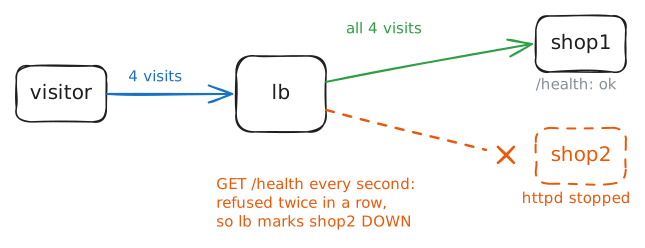
lbasks each server for/healthevery second. Two failed answers in a row mark that server unhealthy, andlbstops sending it visits until two good answers bring it back. AWS checks every 30 seconds by default, and Azure's Load Balancer every 5.Stop
shop2's web server, as a crash would. Then visit the shop four times, readlb's log aboutshop2, and start the web server again.shop2:~# killall httpd visitor:~# curl -s 'http://198.51.100.80/#[1-4]' lb:~# grep shop2 /var/log/haproxy.log shop2:~# httpd -p 80 -h /var/www/shop
Run these steps on real machines
Keep reading
- AWS Site-to-Site VPN: the route table needs the office's routes, by hand or by propagation article
- Azure VPN Gateway: what it is and how a site connects to it article
- Health checks for a load balancer's target group article
- X-Forwarded-For: how a target behind a load balancer learns who asked article