 Hack the Route Start learning Open app
The idea
A Switch passes on whatever a machine says about itself. Three honest accidents in a library take its network down, and three checks at the switch's ports stop each one: port security, DHCP snooping and ARP inspection.
Steps
-
Share one wall outlet
Mira looks after the network at Riverside Library. The reading room has one Switch in a cupboard,
readingSwitch, and every wall outlet in the room is a cable to one of its ports. Visitors search thecataloguefrom thereadingKiosk, or from whatever they bring in.A switch believes what it's told. Every frame carries its sender's hardware address, the switch writes that down against the port it came in on, and nobody checks. The first switches joined shared office Ethernets, with many company computers behind one port, so a port took any address and there was nothing to check.
That trust has a weak spot. The table where a switch keeps those addresses has a fixed size, so a machine sending from thousands of made-up addresses fills it, the switch can't learn anyone new, and as the real entries age out their traffic goes to every port. That's MAC flooding, and the
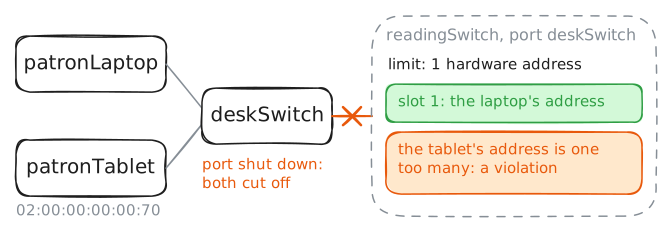
learning-switcheslab pointed here for what stops it.What stops it is port security, a limit on how many hardware addresses one port accepts. The first address to speak takes a slot, and one address too many is called a violation. The limit belongs to the port, because all a switch sees of a frame's origin is which port it came in on. Mira set the limit to one on the outlet at the window desk, and she turned on the sticky option, which makes the port keep that address even after it goes down, and after a restart of the switch once the settings are saved.
This morning a student plugged a small switch into that outlet,
deskSwitch, to share it with a friend. ThepatronLaptophas been working on it for an hour, and thepatronTablethasn't sent anything yet. The port onreadingSwitchis named after what's at the other end, so it's also calleddeskSwitch. Fetch the catalogue from the laptop, then have the tablet ping it.patronLaptop:~# curl -sS -m 3 10.0.1.40 patronTablet:~# ping -c 2 -W 1 10.0.1.40 patronLaptop:~# curl -sS -m 3 10.0.1.40 readingSwitch:~# ip -br link show dev deskSwitch readingSwitch:~# cat /var/log/switch-security.log readingSwitch:~# ip link set dev deskSwitch up readingSwitch:~# nft list set bridge netlab-security port-security-deskSwitch
-
Plug in a home router
The tablet's gone home, and the next problem arrives in a volunteer's bag.
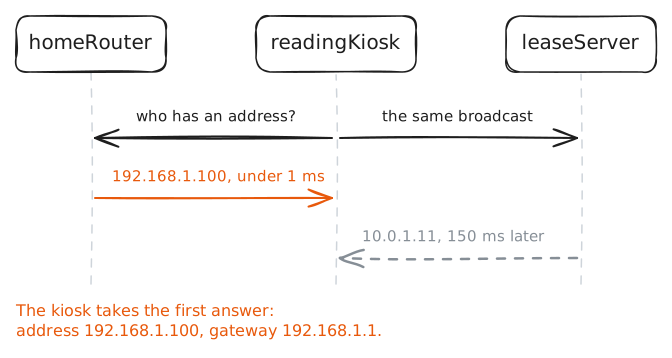
When a machine starts it has no IP address and no idea who to ask, so it asks everybody. DHCP opens with a broadcast, a message to every machine on the network, and any machine running a DHCP server can answer. Nothing in that answer proves who sent it, because DHCP was written in 1993 for networks where whoever answered was the company's own server.
That answer sets more than an address. It also names the default gateway, the Router that carries traffic off this network, which becomes the line in the machine's routing table for everything it has no better route for, and the DNS server the machine will ask for names. So the machine that answers decides where the asker's traffic goes.
Riverside's real server,
leaseServer, sits in the town hall at the end of a slow line, and each of its answers takes about 150 milliseconds to arrive. A home router has a DHCP server turned on from the factory, because that's how it gives a family's phones their addresses. A volunteer wanted more outlets at the returns desk, brought in a spare one, and plugged it in by one of its ordinary ports. That's the most common way a network meets a rogue DHCP server, and the name applies whether anyone meant harm or not.The kiosk is about to restart.
dhcp-releasegives back its address, as a machine can when it shuts down, anddhcp-renewasks for one, as it does when it starts.readingKiosk:~# dhcp-release readingKiosk:~# dhcp-renew readingKiosk:~# curl -sS -m 3 10.0.1.40 readingKiosk:~# ip route
-
Trust only the port the server is on
The fix has to sit where every DHCP answer passes, and that's the switch, which until now has only read the hardware addresses on each frame.
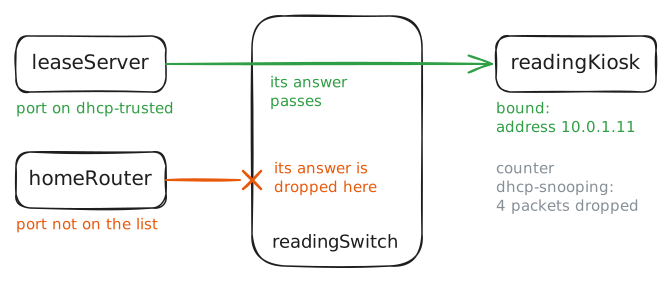
DHCP snooping makes it read DHCP messages as well, and it sorts ports into two kinds. A trusted port may send anything. An untrusted port may send a machine's questions but not a server's answers, so an offer arriving there is dropped on the spot and never reaches anybody.
That makes the setup rule short: trust the ports that lead to the real server, and nothing else. On a Cisco switch every port starts untrusted once snooping is on, and
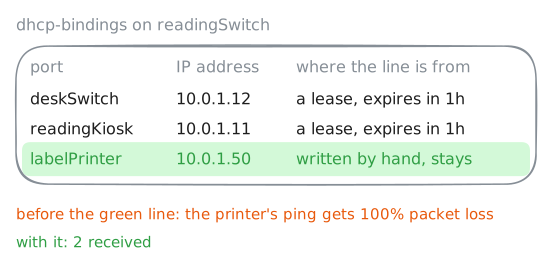
ip dhcp snooping trustmarks the exceptions, usually the cable towards the core of the network. Here the trusted ports are a list in the switch's filter,dhcp-trusted.Snooping has a second job, which is why a later step needs it. Each time a real answer passes through, the switch notes who was given what, and on which port. Nobody ever typed those notes in, and the switch took them from the same messages it was already reading.
Read the list, empty it, and put back the one port the real server is on. Then the kiosk starts again, with the home router still plugged in and still answering first.
readingSwitch:~# nft list set bridge netlab-security dhcp-trusted readingSwitch:~# nft flush set bridge netlab-security dhcp-trusted readingSwitch:~# nft add element bridge netlab-security dhcp-trusted { leaseServer } readingKiosk:~# dhcp-renew readingKiosk:~# curl -sS -m 3 10.0.1.40 readingSwitch:~# nft list counter bridge netlab-security dhcp-snooping readingSwitch:~# cat /var/lib/misc/dhcp-snooping.bindings -
Give the printer the catalogue's address
Everything so far has been about addresses given out. The label printer at the returns desk is different: it has a fixed address, typed in by hand, because a printer needs to stay in one place.
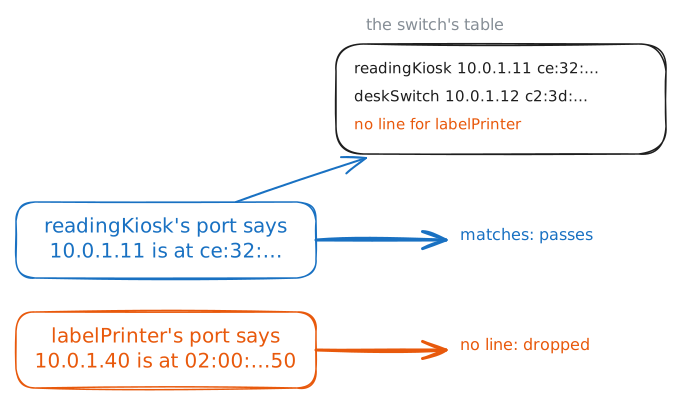
To send anything to a machine on its own network, a computer needs that machine's hardware address, and ARP is how it finds one. It sends a broadcast, "who has 10.0.1.40?", and the owner answers. The answer goes in a table, the neighbour table, so the question isn't asked every time.
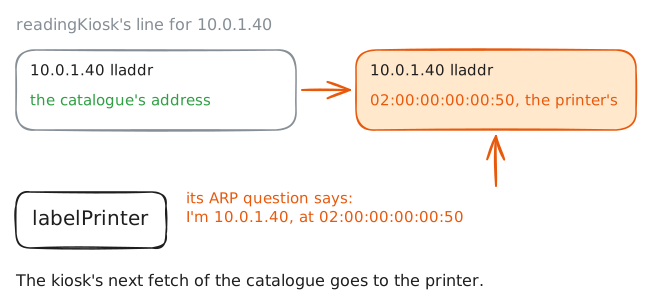
Two things about ARP matter here. Nobody checks an answer, for the same reason nobody checked a DHCP offer: ARP dates from 1982, and everybody on an Ethernet then was trusted. And the question itself carries the asker's own details, "I'm 10.0.1.40, at this hardware address", so that the owner can answer without asking back.
This afternoon a volunteer resets the printer and reads the wrong line off Mira's sticky note. The printer now says it's
10.0.1.40, the catalogue's address, and the volunteer tests it the way anyone would, with a ping to the kiosk. Read the kiosk's line for the catalogue first, so you know what right looks like. Then run that ping and read the line again.readingKiosk:~# ip neigh show 10.0.1.40 labelPrinter:~# ping -c 1 -W 1 10.0.1.11 readingKiosk:~# ip neigh show 10.0.1.40 readingKiosk:~# curl -sS -m 3 10.0.1.40
-
Check every claim against the table
The switch has been keeping the table it needs. Each line says which IP address belongs to which hardware address, on which port. Every ARP message states the first two about its sender, and the switch knows the third, the port it came in on. All that's left is to compare them.
That's dynamic ARP inspection. The switch reads each ARP message arriving on an untrusted port and looks for a line with the same port, IP address and hardware address. If there's a line, the message passes. If not, it's dropped, and the receiver never hears it.
It needs its own trusted list, and for a good reason. The table is built from leases, so it only knows about machines that got an address from DHCP. The
catalogueandleaseServerhave fixed addresses, no lease and so no line, and if their ports weren't trusted nobody could reach them.So cut the list back to those two, the same way as before. One question remains, which is what happens to a line already sitting in the kiosk's table.
readingSwitch:~# nft flush set bridge netlab-security arp-trusted readingSwitch:~# nft add element bridge netlab-security arp-trusted { leaseServer, catalogue } readingKiosk:~# curl -sS -m 3 10.0.1.40 readingKiosk:~# ip neigh flush 10.0.1.40 dev eth0 readingKiosk:~# curl -sS -m 3 10.0.1.40 labelPrinter:~# ping -c 2 -W 1 10.0.1.11 readingSwitch:~# nft list counter bridge netlab-security arp-inspection -
Let the printer back in
The volunteer finds the slip and puts the printer back on
10.0.1.50, the address it should have had all along. No other machine claims that address now, and the catalogue is safe.Inspection stays on, and the printer's port stays in the picture: it's in a public room, and it's the outlet that caused this afternoon's trouble. Before anyone changes anything else, try the printer as it is, and think about what the switch knows about that port.
labelPrinter:~# ping -c 2 -W 1 10.0.1.11
readingSwitch:~# nft add element bridge netlab-security dhcp-bindings { labelPrinter . 10.0.1.50 . 02:00:00:00:00:50 }
readingSwitch:~# nft list set bridge netlab-security dhcp-bindings
labelPrinter:~# ping -c 2 -W 1 10.0.1.11
Run these steps on real machines