 Hack the Route Start learning Open app
The idea
Rosa plugged three clinic machines into a new switch and told it nothing, yet X-rays reach the right desk. In this switching lab, watch it work out who sits where, then catch it handing one to the wrong desk.
Steps
-
Open the new switch
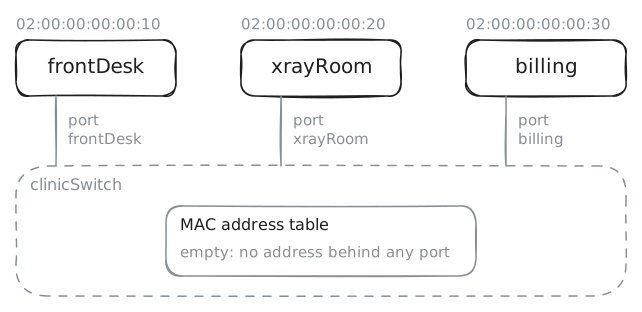
Rosa runs a small dental clinic with three machines:
frontDeskat reception,xrayRoomwhere the pictures are taken, andbillingin the back office. Last night she plugged all three into a new Switch, a box that moves traffic between the machines plugged into it. Each cable ends in a slot on the switch called a port.Rosa gave the switch no list of her machines, and it can't read the labels on her cables. All it can tell them apart by is the hardware address, or MAC (media access control) address, carried by every network card, the part of a machine a cable plugs into.
It's a number that names the card, set at the factory. Real ones look random, apart from a first half that names the maker, so this lab sets readable ones:
frontDeskis02:00:00:00:00:10,xrayRoomends in20andbillingin30.A switch keeps those addresses in a MAC address table, a list of which address sits behind which port. You're about to find out how the list gets filled, so start by looking at a switch that has done nothing yet.
The switch in this lab is a Linux machine doing a switch's job, and its tool is called
bridge, the older word for a switch.Each machine in the lab has a terminal, a window where you type commands to it. Type these two in the terminal on
clinicSwitch: the first lists the ports, and the second prints the table. On a Cisco switch the same two questions areshow interfaces statusandshow mac address-table dynamic.clinicSwitch:~# bridge link show clinicSwitch:~# bridge fdb show dynamic
-
Send the first ping
Each machine here has two addresses, for two jobs. Its IP address, such as
10.0.1.20, is the one programs use to name a destination, and it travels in a packet, one small piece of data on its way there. Its hardware address gets that packet across the local network.Before any data crosses a cable, it goes into a frame, the wrapper for one trip across a local network. The frame carries two hardware addresses: who it's to and who it's from. Switches read the frame and leave the packet inside it alone.
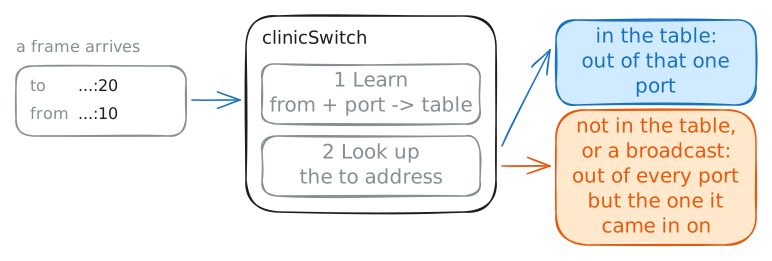
frontDeskknows the X-ray machine's IP address,10.0.1.20, but a frame needs its hardware address. To find it,frontDesksends an ARP (Address Resolution Protocol) request, a question to everybody at once: who has10.0.1.20? That is a broadcast, a frame addressed toff:ff:ff:ff:ff:ff, which means every machine on the network.A switch does two things with each frame, in this order. First it reads the from address and writes down the port the frame came in on. Then it reads the to address and looks it up, and a broadcast goes out of every port except the one it came in on, since that's what a broadcast asks for.
Send one ping from
frontDesktoxrayRoomand read the table straight after. The lab records what reachesbilling, which has no part in this.frontDesk:~# ping -c 1 -W 2 10.0.1.20 clinicSwitch:~# bridge fdb show dynamic
-
Listen from the back office
To see why that table matters, look at what came before it. A Hub was the box in every office wiring closet until the mid 1990s, and it had no table and no opinions: each signal coming in on one port went straight out of all the others, like a shout in one room.
Every machine heard everything, and only one could talk at a time, because two talking at once garbled each other and both had to stop and try again. Add machines to a hub and each gets a smaller share of the same wire.
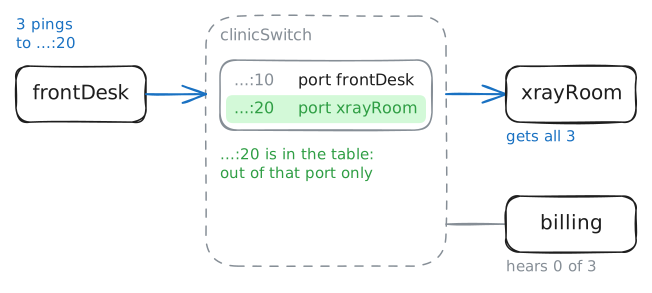
Bridges and then switches fixed both faults by acting on that table. A small company called Kalpana sold the first switches for Ethernet, the standard behind wired networks, in 1990, and they were bridges with many ports and fast hardware. A switch sends a frame only out of the port that leads to the machine it's for, so two pairs of machines can talk at the same moment over the same box, and a third machine hears nothing.
Now that the switch knows both machines, send three pings and then fetch the X-ray viewer's page. The lab records what reaches
billingduring the pings.frontDesk:~# ping -c 3 10.0.1.20 frontDesk:~# curl -s -m 3 http://10.0.1.20/
-
Make the switch forget
A table can't keep every entry forever. Pull a machine's cable out of a port and the switch clears that port's lines at once, but a machine can also leave without the port noticing: a laptop behind a Wi-Fi access point walks away, and the port stays live. Its old line would go on sending frames to a place it has left.
So each entry has a timer, restarted each time that address sends something, and when the timer runs out the switch deletes the line. The default in the standard for bridges, which most switches keep, is 300 seconds, known as the ageing time.
A machine that moves and talks needs no timer: its first frame from the new port rewrites the line on the spot. The timer is for the machine that moves and says nothing, or leaves for good, so the table doesn't keep a line that's no longer true.
Read how long each address has been silent, and then the timer itself, among the switch's settings. Then the lab skips the wait by emptying the table, the state it reaches when five minutes pass with nobody talking.
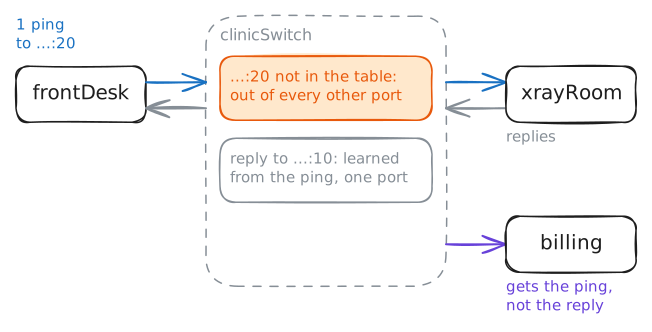
frontDeskhasn't forgotten anything though: it keeps its own record ofxrayRoom's hardware address, for much longer, so it won't ask with a broadcast this time. It sends one ping straight to that address, and the switch has a frame for a machine that isn't in its table. The lab is recording onbillingagain.clinicSwitch:~# bridge -s fdb show dynamic clinicSwitch:~# ip -d link show br0 clinicSwitch:~# bridge fdb show dynamic frontDesk:~# ping -c 1 -W 2 10.0.1.20 clinicSwitch:~# bridge fdb show dynamic
-
Look for the switch on the path
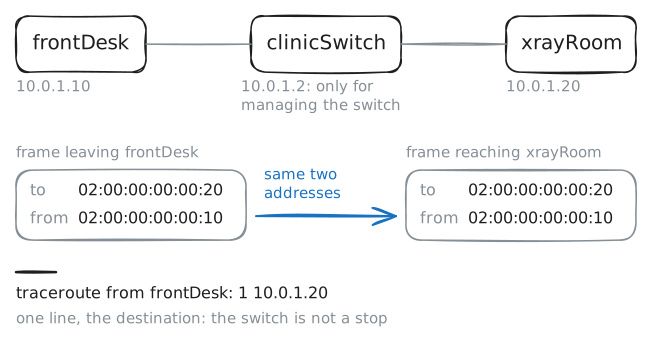
You've watched the switch read every frame and decide where it goes, which makes it sound like a stop on the way. A Router, the machine that joins networks, is exactly that kind of stop, so it's worth asking whether a switch counts as one.
Traceroute lists each stop between two machines. It works with the time to live, a counter in each packet that every router lowers by one, and a router that takes it to zero sends back a message that gives away its address.
traceroutesends packets with that counter set to 1, then 2, then 3, so each router on the path takes a turn and shows up as one numbered line, and the last numbered line is the destination, which answers when a packet reaches it.Run it from
frontDesktoxrayRoom. Then askfrontDeskwhich hardware address it uses for10.0.1.20, and ping the address10.0.1.2, which belongs to the switch.frontDesk:~# traceroute -n 10.0.1.20 frontDesk:~# ip neigh show 10.0.1.20 frontDesk:~# ping -c 1 -W 2 10.0.1.2
Run these steps on real machines