 Hack the Route Start learning Open app
The idea
Marco's hotel has one Switch and no budget for a second, so guests and the key-card server share it. His contractor says different addresses keep them apart. Prove that wrong with one setting, then build a wall a guest can't talk past.
Steps
-
Reach for the key server from a guest's laptop
Marco runs a small hotel.
keyServerprograms every room key,frontDeskis the reception computer, and guests useguestLaptopandlobbyKiosk. All four plug into one Switch, thehotelSwitch, a box with a slot called a port for each cable, and this lab names each port after the machine on the end of its cable.His contractor gave the staff machines IP addresses, the numbers machines use to reach each other, starting
10.0.10, and the guests' machines addresses starting10.0.20. Those are two subnets, ranges of addresses, and the contractor told Marco that the guests are now on a separate network. It sounds right, and it even looks right, so start by testing it from the guest's side.Try to reach the key server, at
10.0.10.20, fromguestLaptop. Then test the other half of the claim, which is what a guest can hear.Before
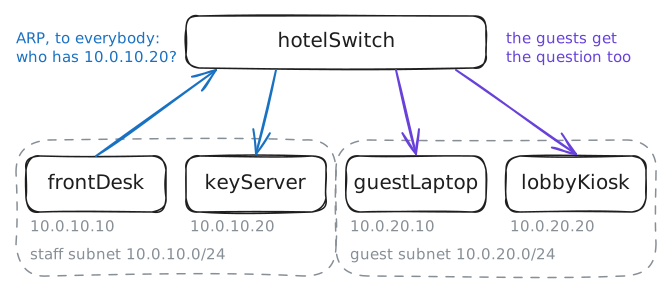
frontDeskcan talk tokeyServer, it needs the key server's hardware address, the number built into its network card. So it asks who has10.0.10.20, an ARP question sent as a broadcast, a message addressed to everybody, and the lab records what reaches the laptop's network card.guestLaptop:~# ping -c 1 -W 2 10.0.10.20 frontDesk:~# ping -c 1 -W 2 10.0.10.20
-
Borrow a staff address
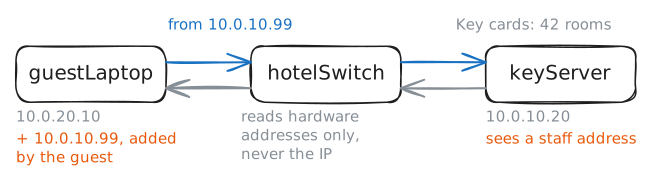
Two facts are about to meet. A plain switch moves frames, the wrappers that carry data across a network, by hardware address and never reads an IP address. And an IP address is a setting on a machine, which whoever controls the machine can change.
So what stopped the guest in the last step? The laptop itself, which looked at
10.0.10.20and decided it was far away, and nothing in the network said no.A machine can also hold two addresses on one network card, so a guest can add one from the staff subnet without losing their own.
Type this on
guestLaptop: the address.99isn't in use, and no password or special access is involved, only the laptop's own settings. Then ask the key server for its page.guestLaptop:~# ip -echo addr add 10.0.10.99/24 dev eth0 guestLaptop:~# curl -sS -m 3 http://10.0.10.20/
-
Split the switch in two
For years the answer was exactly that second switch: a box for each department, and a technician in a closet moving cables each time somebody changed desks. Spare ports on one box were no use to another, and two floors in one department needed cables between them.
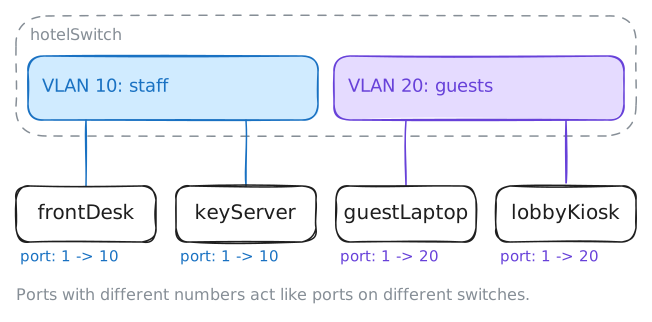
A VLAN, a virtual LAN (local area network), makes those separate boxes in software. The switch keeps a number on each port and treats ports with different numbers as if they were on different switches.
Frames, broadcasts and tables all stay inside their number. The numbers mean nothing in themselves, so Marco picks 20 for guests and 10 for staff.
Each port starts in VLAN 1, the default. Look at that first, then move the guest's port. You're typing on
hotelSwitch, since a VLAN is a setting on the switch and the laptop has no part in it.The switch here is a Linux machine, and its tool is called
bridge, the older word for a switch. Two commands move a port: one adds the new VLAN, and one takes away the old.The words in the first are
vid 20, the VLAN's number,pvid, which files the plain frames a machine sends into this port under VLAN 20, anduntagged, which you'll understand in a later step. On a Cisco switch the same move isswitchport mode access, thenswitchport access vlan 20.hotelSwitch:~# bridge vlan show hotelSwitch:~# bridge vlan add dev guestLaptop vid 20 pvid untagged hotelSwitch:~# bridge vlan del dev guestLaptop vid 1 hotelSwitch:~# bridge vlan show
-
Try the same trick again
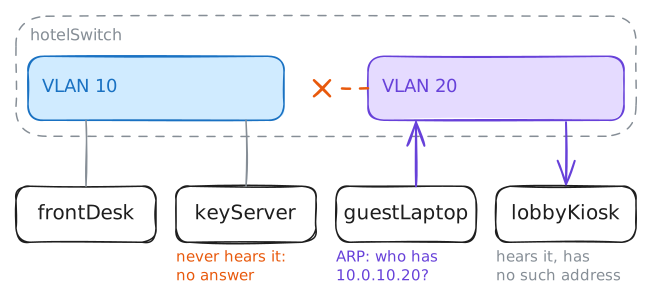
guestLaptopstill has its borrowed address,10.0.10.99, so as far as the laptop knows, nothing has changed:keyServeris a neighbor. Its first move is an ARP question, and this time that question arrives at a port in VLAN 20.The rule from the last step decides what happens. A broadcast goes out of every port in the same VLAN, and no others. So run the same fetch, then ask the laptop what became of the ARP question, then repeat the staff ping from the first step with the lab recording on the guest's card.
Finish with two checks that nothing broke:
lobbyKioskshould still answer the guest, and the switch's table should show what it now knows.guestLaptop:~# curl -sS -m 2 http://10.0.10.20/ guestLaptop:~# ip neigh show 10.0.10.20 frontDesk:~# ping -c 1 -W 2 10.0.10.20 guestLaptop:~# ping -c 1 -W 2 10.0.20.20 hotelSwitch:~# bridge fdb show dynamic
-
Find the tag on the router's cable
A hotel guest also wants the internet, so the guests' side has to reach
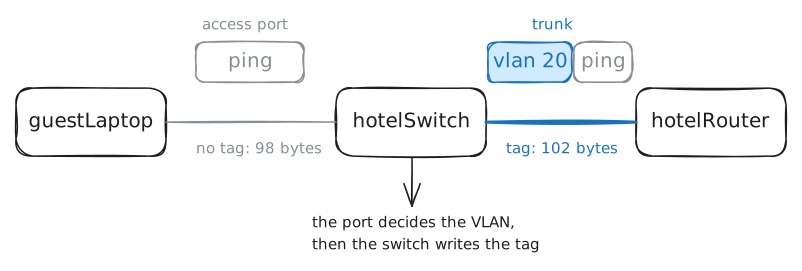
hotelRouter, and so does the staff side. One cable runs from the switch to the router, and it has to carry both VLANs, which raises a question: a frame on that cable looks like any other, so how does the far end know which VLAN it's in?The answer came from a standard called IEEE 802.1Q, approved in 1998, and it's a tag: 4 extra bytes that a switch writes into a frame. 12 of those bits hold the VLAN number. A bit is a single 0 or 1 and each one doubles the count, so 12 bits give 4096 values, and with two reserved, VLAN numbers stop at 4094.
Before that standard, each vendor had its own way of marking frames, and switches from different makers couldn't share a VLAN.
A cable that carries several VLANs, told apart by their tags, is called a Trunk. The port
hotelRouteris one, which is why it was listed with three numbers.A bare
10or20on that port means a tagged VLAN. The third,1 PVID Egress Untagged, is the one VLAN a trunk may carry with no tag, called its native VLAN, and thevlan-trunkinglab takes that apart.Take the borrowed address off the laptop, since the guest is done being a thief. Then ping the router at
10.0.20.2, and the lab records the same ping on the guest's own card and on the router's.guestLaptop:~# ip -echo addr del 10.0.10.99/24 dev eth0 guestLaptop:~# ping -c 1 -W 2 10.0.20.2
-
Join the two VLANs on purpose
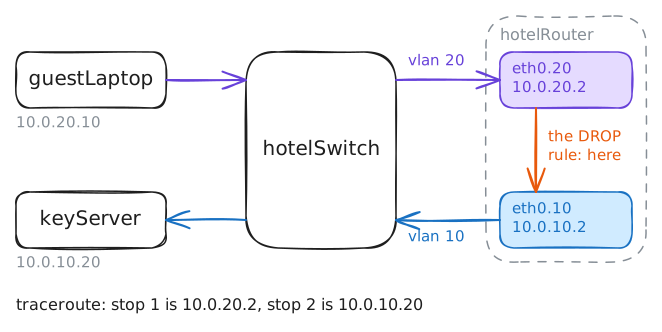
A VLAN is a wall with no door, and in a real hotel both sides want the internet, so something has to carry traffic out. That job belongs to a Router, the machine that joins networks, and a VLAN is a network.
hotelRouterhas one cable but two faces. On top of its cardeth0sit two VLAN cards,eth0.10andeth0.20, which add and read tags, and each has its own address.Each VLAN's machines use the matching address as their default gateway. A router working from one tagged cable has an old nickname, router on a stick.
Look at those cards. Now the laptop has given back its borrowed address and has only its own, so it treats the key server as far away, and hands the request to its gateway. Ask for the page once more, and trace the path it takes.
Then close the door with a Firewall rule on the router, and ask for the page again from the guest's side and from the staff side.
hotelRouter:~# ip -br addr
guestLaptop:~# curl -sS -m 3 http://10.0.10.20/
guestLaptop:~# traceroute -n 10.0.10.20
hotelRouter:~# iptables -A FORWARD -i eth0.20 -o eth0.10 -j DROP
guestLaptop:~# curl -sS -m 3 http://10.0.10.20/
frontDesk:~# curl -sS -m 3 http://10.0.10.20/
Run these steps on real machines