 Hack the Route Start learning Open app
The idea
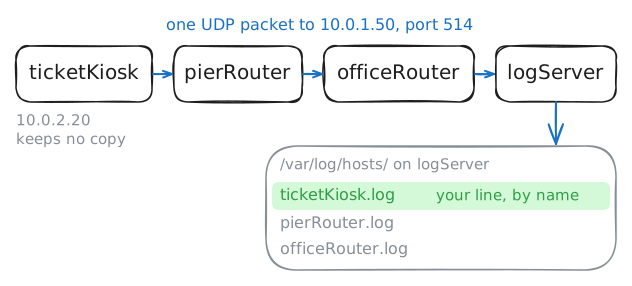
Cormorant Ferries' ticket pier went silent for a while this morning, and nobody can say when or why. Every machine here sends its log lines to one syslog server. Send it a line of your own, then go looking for what the routers said about the silence.
Steps
-
Send the syslog server a line
Every program on a machine keeps a running diary. A router notes a neighbour coming and going, and the ticket kiosk notes each ticket it sells and each paper jam. Each entry is a log line, and Syslog is the standard way to pass those lines around a network.
On each machine here, a program called
rsyslogdcollects the lines every other program logs. The kiosk's copy keeps none of them. It sends each one across the network tologServer, the syslog server in the office, at10.0.1.50on UDP port 514.Gathering every machine's lines in one place is called log aggregation, and the machine that gathers them is a syslog server, or syslog collector. It earns its keep on the bad day. A router has little disk, a crashed kiosk takes its logs down with it, and nobody wants to log in to forty machines one at a time.
Send a line from the kiosk, then read the file the syslog server keeps for it.
tail -n 3prints a file's last 3 lines.ticketKiosk:~# logger "Kiosk 2 is out of paper" logServer:~# tail -n 3 /var/log/hosts/ticketKiosk.log
-
Read the number at the front of a line
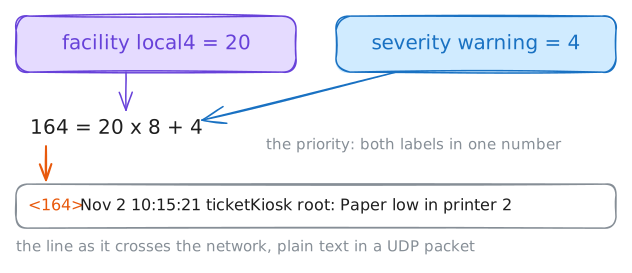
Every syslog line carries two labels. The facility says what kind of program wrote it:
userfor everyday programs,daemonfor background services such as the routers' OSPF, andlocal0tolocal7, left free for your own use. Syslog defines 24 in all,kern,authandmailamong them.The severity says how bad it is, and a smaller number is worse:
Number Severity Meaning 0 emergThe system is unusable 1 alertSomeone must act now 2 critA critical failure 3 errAn error 4 warningA warning 5 noticeNormal, but worth a look 6 infoInformation 7 debugDetail for debugging On the wire, syslog packs both labels into one number in angle brackets at the very start of the line, called the priority: facility × 8 + severity.
loggerusesuser.noticeunless told otherwise, and that's facility 1 and severity 5, so step 1's line travelled as<13>.The lab starts
tcpdumponlogServerto catch the kiosk's next syslog packet. Send a warning from the kiosk on facilitylocal4:logger -p local4.warningsets both labels. The capture shows you the first bytes of the line.logServer:~# tcpdump -n -A -c 1 -i office udp port 514 and src host 10.0.2.20 ticketKiosk:~# logger -p local4.warning "Paper low in printer 2"
-
Keep the warnings in one file
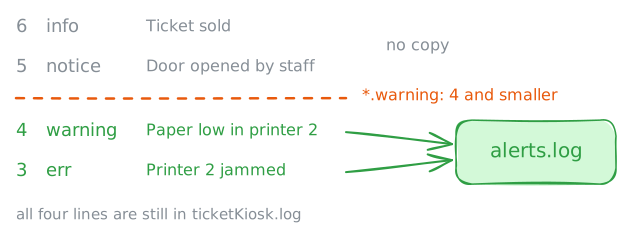
The syslog server writes each machine's lines to that machine's file, and on a busy morning the kiosk alone logs a line for every ticket sold. Nobody reads those. What the ferry's ops team wants is one short file of things going wrong, from every machine.
rsyslog decides where lines go with rules, each a selector and then an action. The selector is
facility.severity, with*for any facility. A severity in a selector means that severity or worse, so*.warning /var/log/alerts.logputs everywarning,err,crit,alertandemergline, from any facility, in that file.Open
/etc/rsyslog.confonlogServerand add that rule at the end. Saving restarts rsyslog, which reads its config only when it starts, and then checks the file. After that, the kiosk logs four lines from its morning, one at each of four severities.logServer:~# cat /var/log/alerts.log
-
Cut the harbor link and search the logs
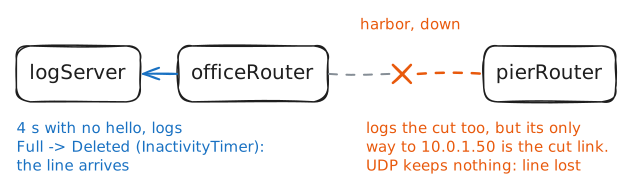
Back to this morning's mystery. The two routers find their routes with OSPF, and they send each other a hello every second over the harbor link. When hellos stop for 4 seconds, a router gives up on its neighbour and logs a line about it, and both routers send their lines to the syslog server.
You'll replay the outage yourself. On
pierRouter, take its card on theharborlink down, which is what pulling the cable would do. OnceofficeRouterhas given up on its neighbour, bring the card back up.Then search every machine's file on the syslog server for the word
harbor, which OSPF's lines name.grepprints the lines of a file that hold a word, and*.loghands it every file in the folder at once, so it starts each line with the name of the file it came from.pierRouter:~# ip link set harbor down pierRouter:~# ip link set harbor up logServer:~# grep harbor /var/log/hosts/*.log
-
Make the pier's lines wait out the outage
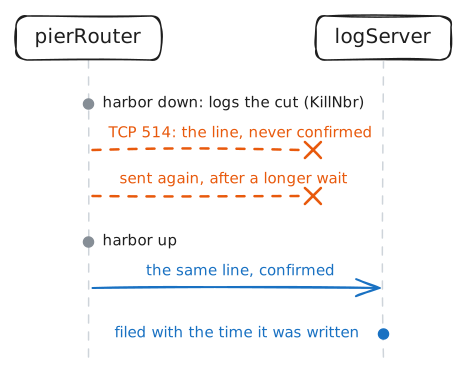
Over UDP, a line that can't leave right away is gone. That's the price of UDP being cheap, and syslog has paid it on UDP port 514 since the 1980s. TCP numbers what it sends, waits for the far end to confirm it, and sends again whatever wasn't confirmed.
rsyslog picks the transport in the forwarding rule: one
@before the address means UDP, and two,@@, mean TCP. The syslog server already listens on TCP port 514 too.Open
/etc/rsyslog.confonpierRouter, change its rule to TCP and save, which restarts rsyslog. Then cut the link again, the same way: off, and back on onceofficeRouterhas noticed.The lab waits for
pierRouter's lines to arrive. Then search every machine's file forDeleted, and put the routers' lines in time order yourself: each one starts with the time it was written.pierRouter:~# ip link set harbor down pierRouter:~# ip link set harbor up logServer:~# grep Deleted /var/log/hosts/*.log
Run these steps on real machines