 Hack the Route Start learning Open app
The idea
Bea's print shop takes artwork through a file server, and this morning a customer phoned: the login works, then the file list hangs forever. She has to find out how one connection can work while the next one fails, and whether to keep FTP at all.
Steps
-
FTP: talk to a file server by hand
Bea's print shop takes artwork through a server called
print, and this morning a customer phoned to say the login works and the file list never comes. To see why, start by hearing how FTP talks.FTP, the File Transfer Protocol, was first written down in 1971, which makes it older than TCP itself. It shows its age, and web hosts, printers and scanners still move files with it.
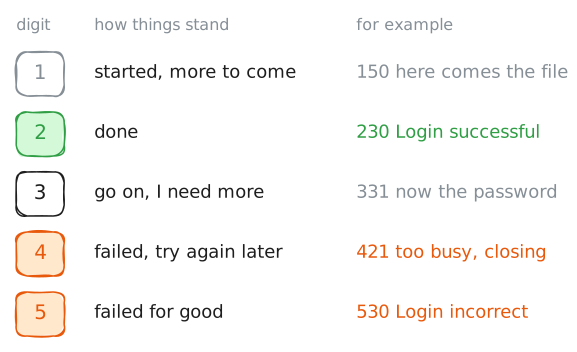
A client sends short commands as lines of plain text, and the server answers each one with a three-digit code and a sentence. Programs read the number, and the sentence is there for you. The first digit says how things stand:
1started,2done,3go on, I need more,4failed, try again later, and5failed for good.ncopens a TCP connection and joins it to your keyboard, so that conversation is yours to type, on FTP's port, 21.USERandPASSlog you in, asbeawith the passwordinky-7.PWDasks where you are,LISTasks for the files, andQUITleaves.laptop:~# nc print.lab 21
-
Passive mode: a second connection for the data
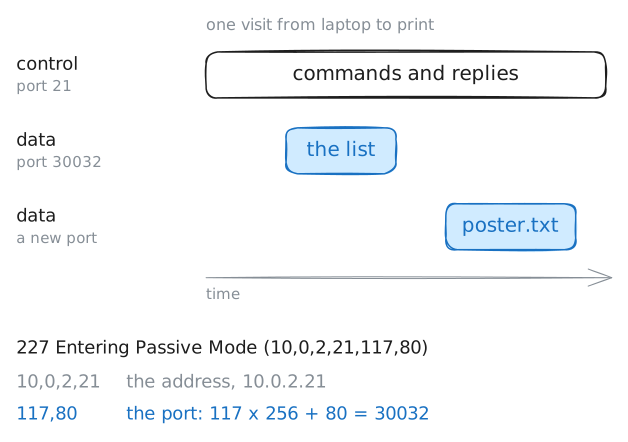
FTP splits its work across two connections. The one you typed on is the control connection: commands and replies, on port 21, open for the whole visit.
Files and lists go over a data connection, opened for one transfer and closed at the end of it. That keeps the control connection free during a transfer, so a client can still send
ABORto stop it.In passive mode, the client asks for the second connection with
PASV. The server picks a free port, starts waiting on it, and replies with six numbers, such as(10,0,2,21,117,80). The first four are its address.The last two are the port, split into two bytes. A byte only counts to 255, so the first one counts in 256s: here the port is 117 times 256, plus 80, which is 30032. The client then connects to that port.
-vprints the conversation, so the lines you typed go by again, this time with a second connection after them.curlnormally sendsEPSV, a later command whose reply holds the port alone, so--disable-epsvkeeps the old form, the one with a sum to do.Two URLs make two transfers in one visit. The capture is a recording of the packets passing
shopRouter, kept to the ones that open a connection. Keeping the password in the URL is a lab shortcut, since it lands in your command history.laptop:~# curl -sv --disable-epsv ftp://bea:inky-7@print.lab/ ftp://bea:inky-7@print.lab/poster.txt
-
Active mode: the server calls you back
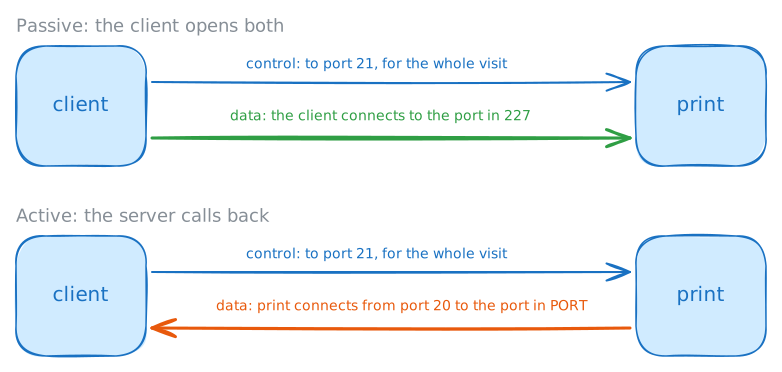
Passive mode was the later idea. FTP began the other way round, in active mode: the client starts waiting on a port of its own, gives that port to the server with
PORT, and the server connects back to it, from port 20. That's backwards from nearly everything else on the internet, where the client does the connecting.The names confuse almost everyone, because they describe the server. In active mode the server actively opens the data connection. In passive mode it waits passively, and the client opens both.
Active mode made sense in the 1970s, when every machine had an address of its own and nothing stood between them.
customer, a machine belonging to one of Bea's customers, is still in that position: it sits on the internet side with its own address and no router doing anything to its packets. So active mode has a fair chance from there.--ftp-port -putscurlin active mode, and the-means use the address the control connection already has.--disable-eprtkeeps the oldPORTcommand. The capture onprintholds only packets that open a connection, so it shows who called whom.customer:~# curl -sv --disable-eprt --ftp-port - ftp://bea:inky-7@print.lab/
-
NAT: the address written inside the message
Now try active mode from Bea's laptop, which sits behind
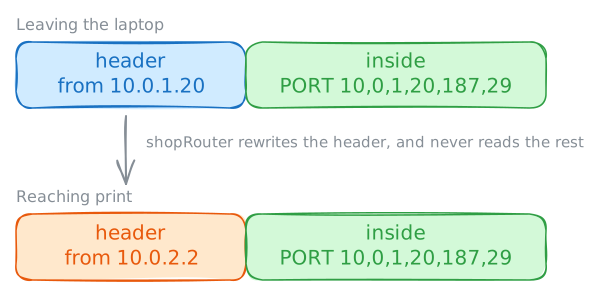
shopRouter. The router does NAT: on every packet going out, it replaces the laptop's address in the header, the addressing at the front of the packet, with its own.10.0.1.20is a private address that means nothing outside the shop, soprintonly ever sees10.0.2.2, and the router passes the replies back.NAT rewrites the packet's header and leaves what's inside alone.
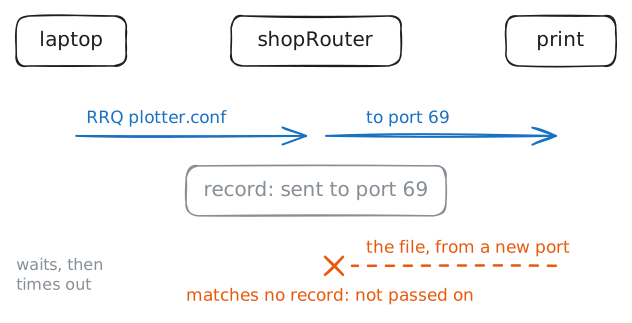
PORTcarries the address as text inside the data, so the laptop's private address reaches the server unchanged. The server gets told to connect to a machine it has no way to reach.A correct address wouldn't save it either. The router keeps a record of each connection going out, so it knows where replies belong. A connection that starts outside matches no record, so the router can't tell which machine inside it was meant for.
Run active mode from the laptop, then run
curlwith no flags at all. The capture is on the router's internet side, so it shows whatprintreceives.laptop:~# curl -sv --disable-eprt --ftp-port - ftp://bea:inky-7@print.lab/ laptop:~# curl -s ftp://bea:inky-7@print.lab/
-
Firewall: the login works and the list hangs
Passive mode didn't remove the problem. It moved it to the server's side:
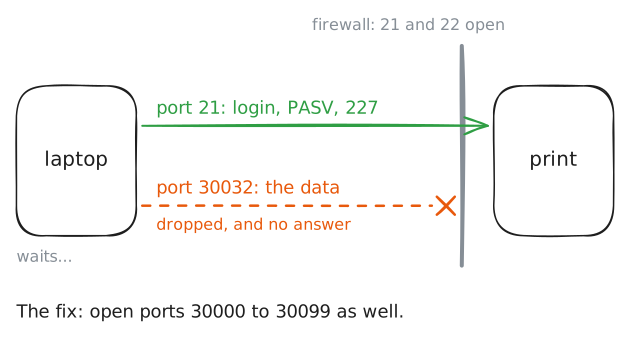
printnow has to accept a connection on a port nobody can name in advance.A firewall usually drops a packet and says nothing, so the client gets no refusal and keeps trying until it gives up. That's the difference between the
500in the NAT step and a hang.A refusal means something answered you, and silence usually means something on the way threw the packet out.
This is what reached Bea's customer. Her hosting company turned on a firewall on
printovernight, with ports 21 and 22 open. vsftpd here hands out passive ports from 30000 to 30099, so that range has to be open too.Run the transfer from
laptop, with--max-time 5to stop the wait, then open the range and run it again.laptop:~# curl -sv --max-time 5 --disable-epsv ftp://bea:inky-7@print.lab/ print:~# iptables -v -I INPUT -p tcp --dport 30000:30099 -j ACCEPT laptop:~# curl -s ftp://bea:inky-7@print.lab/
-
SFTP: one encrypted connection
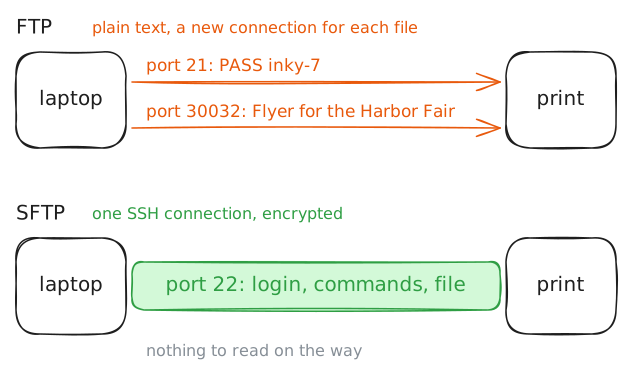
Bea can keep fixing firewalls, and FTP still has a bigger problem: the password, the commands and the files all cross the network as plain text.
SFTP is where she'd move her customers, and its name misleads people. It isn't FTP with security added. It's a different protocol that runs inside an SSH connection, on port 22, and shares nothing with FTP beyond the job.
There's one connection, and commands and files all travel in it as encrypted messages. So there's no second port to open and no address in a message for NAT to miss. It also uses SSH's accounts and keys, so most servers with SSH already offer it.
The other name you'll meet is FTPS, which is real FTP wrapped in TLS. It protects the password, and the file too once the client asks for that, and it keeps both connections.
So with FTPS the firewall trouble stays, and a helper can no longer read an encrypted
227.printdoesn't offer FTPS here.Upload a flyer both ways with a capture running on
shopRouter.curl -Tuploads over FTP.sftpgives you a prompt whereputuploads,ls -llists andbyeleaves.laptop:~# curl -s -T /root/flyer.txt ftp://bea:inky-7@print.lab/ shopRouter:~# tcpdump -l -nn -i internet 'tcp[tcpflags] & tcp-syn > 0 and tcp[tcpflags] & tcp-ack = 0' laptop:~# sftp bea@print.lab
-
TFTP: a file with no login at all
One more file protocol turns up on most networks, and it's built for machines with almost nothing in them. A desk phone, a plotter or a server booting from the network has to fetch a file before it has a proper operating system, so a tiny program built into the device does the fetching. That program has no room for logins or for TCP, so TFTP, the Trivial File Transfer Protocol, does without them.
TFTP runs on UDP port 69. There's no login, no folder list and no encryption: the client names a file and the server starts sending.
UDP won't resend anything, so TFTP does that itself. The server sends one block of 512 bytes and waits for an acknowledgement before the next, and a block shorter than that means the file has ended.
Bea's plotter loads its settings this way when it starts.
customershares a network withprint, so it can stand in for the plotter. Fetchplotter.conffrom there, then ask for the same file from the laptop, behind NAT, withcurl, which speaks TFTP too.customer:~# tftp -v print.lab -c get plotter.conf customer:~# cat plotter.conf laptop:~# curl -sv --max-time 6 tftp://print.lab/plotter.conf
Run these steps on real machines