 Hack the Route Start learning Open app
The idea
Mia asks Zoe's web server for a page and gets one line back. On its way there, her request wore four wrappers, and a router opened two of them.
Open them one at a time, then break each in turn. Every wrapper fails with its own message, so the message tells you where to look.
Steps
-
Send one request
In the lab Clients and servers,
curlfetched a page and printed it. You saw the page and nothing else. This time you read what crossed the wire to fetch it.Mia asks for the page at
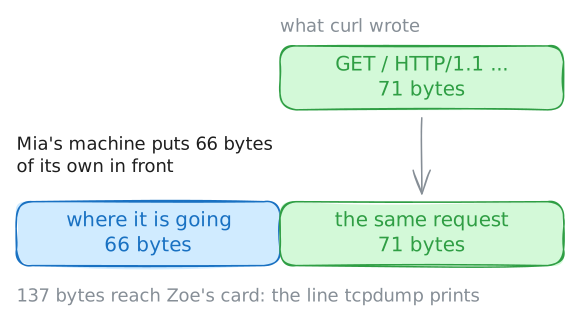
zoe.lab. The lab runstcpdumpon Zoe's machine, a tool that prints each message a network card sends or receives.One page takes several messages. Most of them start and end the talk between the two machines, and the lab on TCP reads those. Here the lab prints only the one message that carries Mia's request.
tcpdumpprints a message as one long line, and counts it in bytes. A byte is 8 bits, enough for one letter of text.mia:~# curl -s http://zoe.lab/
-
Open the wrappers
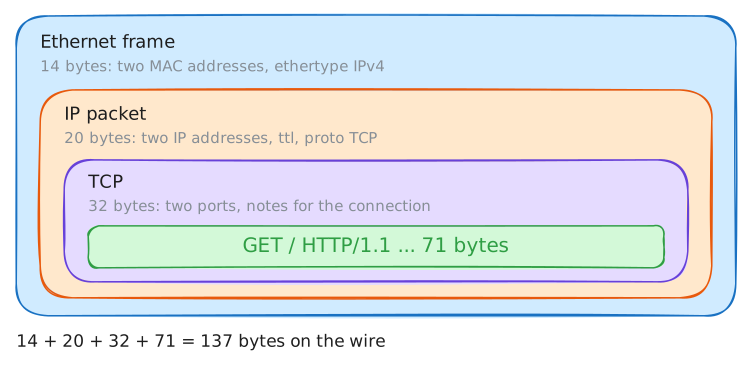
Those 66 bytes aren't one lump. Getting words from a program onto a wire takes four jobs, and a different part of the machine does each.
- The program writes the words.
curlknows about pages and nothing about cards. - TCP gets the words to the right program, whole and in order. It uses ports.
- IP gets them across networks, from one address to another.
- Ethernet gets them one hop, from card to card, inside a frame.
Below the program, each part takes what the part above handed it, puts its own notes on the front, and passes it all down. Those notes are called a header, and this lab calls each one a wrapper.
The result is a message inside a message, like a letter in an envelope in a sack. The word for it is encapsulation.
Each job is a layer. The split is worth it because each layer can ignore the rest. IP doesn't care that the words are a web page, and
curldoesn't care whether the wire is a cable or Wi-Fi.Zoe's machine does the same thing in reverse, and takes off one wrapper at a time. Mia asks again. This time
tcpdumpadds-v, which prints each wrapper in full, and-K, which skips a check that gives a false alarm here.mia:~# curl -s http://zoe.lab/
- The program writes the words.
-
Send something else
Why does every network split the work the same way? In the 1970s each maker sold its own network. IBM had SNA and Digital had DECnet, and machines from different makers often couldn't talk.
So in 1977 the ISO, a standards body, began a common map of the jobs a network has to do. It came out in 1984 as the OSI model, with seven layers numbered from the wire up.
The internet grew up alongside it from its own protocols, the agreed rules for each job. The TCP/IP model describes those in four named layers. You will meet both, so here they are.
- 7 Application: the words between programs. TCP/IP folds OSI's 5 Session (starting and ending a talk) and 6 Presentation (the format of the data) in here.
- 4 Transport: ports, with TCP or UDP. TCP/IP's name is the same.
- 3 Network: IP addresses. TCP/IP calls it Internet.
- 2 Data link: frames and MAC addresses.
- 1 Physical: the signal itself, electricity, light or radio. TCP/IP joins 1 and 2 as Link.
The internet runs on the four, and engineers still say the numbers: a layer 2 problem is about frames.
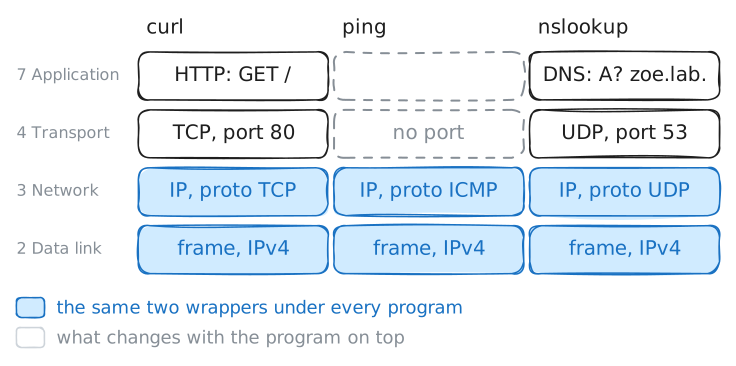
Now test the promise layers make: change the top, and the bottom stays as it was.
pingasks a machine whether it is there, andnslookupasks which address goes with a name. The lab prints what each sends from Mia's card.mia:~# ping -c 1 10.0.2.10 mia:~# nslookup -type=a zoe.lab
-
Follow it through the router
The lab Network devices sorted devices by how much of a message they read. Layers give each one a number.
- A hub repeats a signal and reads nothing, so it is a layer 1 device.
- A switch reads the frame, so it is layer 2.
- A router reads the packet, so it is layer 3.
- A firewall reads the packet and the port to decide what may pass, so it works at 3 and 4.
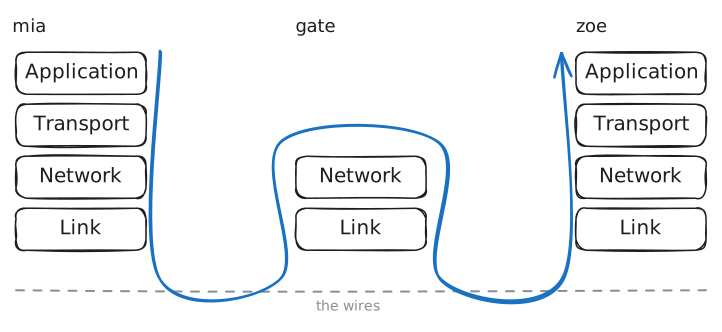
Only the two ends open everything.
Mia's request crossed
gate, the router between her network and Zoe's, so what didgatetouch? Find out by reading one request on each side of it. The lab prints the same message twice: as it leaves Mia's card, and as it reaches Zoe's.mia:~# curl -s http://zoe.lab/
-
Break the top
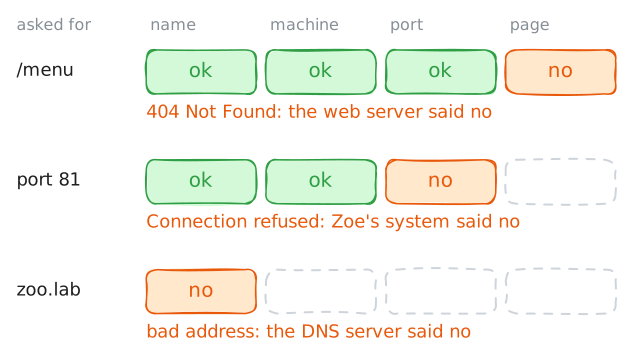
Layers are most useful when something fails. Each layer fails in its own way, so an error message names a layer.
Try three requests that can't succeed. Each one breaks something near the top.
- A page Zoe doesn't have.
- A port nobody is listening on.
- A name nobody knows.
This step uses
wget, another program that fetches pages, because it names each failure in its own words.curl -sprints nothing at all for two of the three, because-shides error messages along with the progress bar.mia:~# wget -q -O - http://zoe.lab/menu mia:~# wget -q -O - http://zoe.lab:81/ mia:~# wget -q -O - http://zoo.lab/
-
Break the bottom
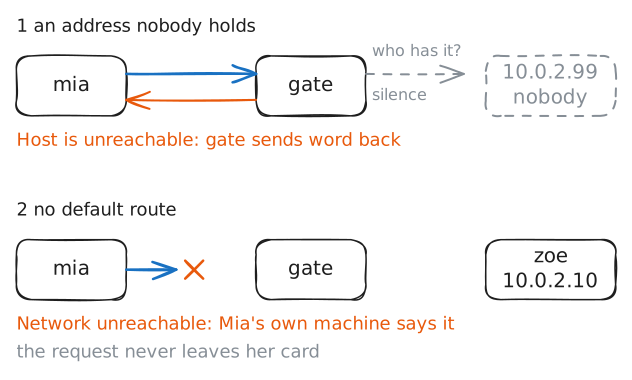
Lower down, an error says less, because less of the message got anywhere. Two faults show the difference.
First Mia asks for an address on Zoe's network that no machine holds.
Then the lab takes away her default route. That is the line in her machine's list of routes that says where to send everything meant for other networks: to
gate. Without it she has no way off her own network.She asks for the real page anyway, then reads her routes.
Watch who reports each failure.
mia:~# wget -q -O - http://10.0.2.99/
mia:~# wget -q -O - http://zoe.lab/
mia:~# ip route
Run these steps on real machines