 Hack the Route Start learning Open app
The idea
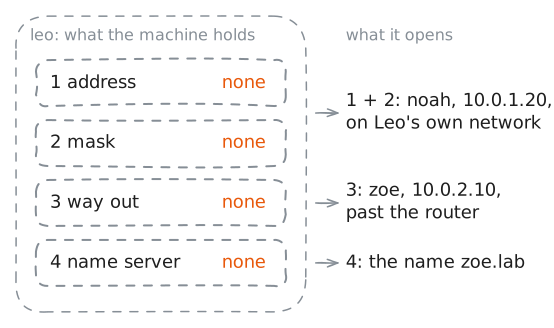
Leo's new machine has a network card, a cable and nothing else. No address, no route, no way to turn a name into an address, and no DHCP server on this network to hand them over.
Set it up by hand, one piece at a time, and watch each piece open up more of the network. Then make it last, because most of what you type here is gone at the next restart.
Steps
-
Read a blank machine
A machine needs four things to work on a network: an address, a mask that says which addresses are near, a way out to other networks, and a way to turn names into addresses. DHCP hands all four over, as you saw in the lab on it. Servers and routers often set them by hand, because their addresses must not change, and you fall back on the same skill when DHCP fails.
Start by reading what Leo's machine has. Linux keeps the first three in the kernel, the core of the system, and
ipis the tool that reads and changes them.leo:~# ip -br link leo:~# ip -br -4 addr leo:~# ping -c 1 10.0.1.20
-
Switch on the card and take an address
Two things are missing before Leo can reach even the next desk: a card that is on, and an address. Linux leaves a card off until something turns it on.
ip link set dev eth0 updoes that, andip addr addputs an address on it.Older guides use
ifconfigandroutefor this. Those tools are obsolete, and many systems no longer install them, so learnip.The
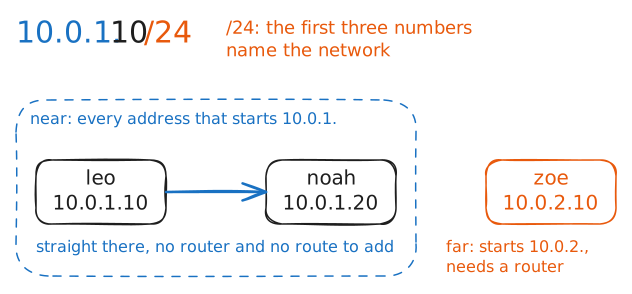
/24matters as much as the number. It is the mask, and it tells the machine which addresses are near./24says the first three numbers,10.0.1, name the network, so every address that starts with10.0.1.is near.Near means Leo can reach them himself, with no router. Leave the mask off and Linux takes
/32, a network of one machine, and Noah is out of reach.Both commands print nothing when they work. That is the Linux habit: quiet on success, loud on failure. So an empty screen here is the result you want.
Leo takes
10.0.1.10, the address he was given for this machine. Nothing checks it. Linux accepts any address you type, free or not, and the second Practice problem shows what that costs.leo:~# ip link set dev eth0 up leo:~# ip addr add 10.0.1.10/24 dev eth0 leo:~# ping -c 1 10.0.1.20
-
Give it a way out
Leo can reach his own network now and nothing past it. Zoe's machine sits behind
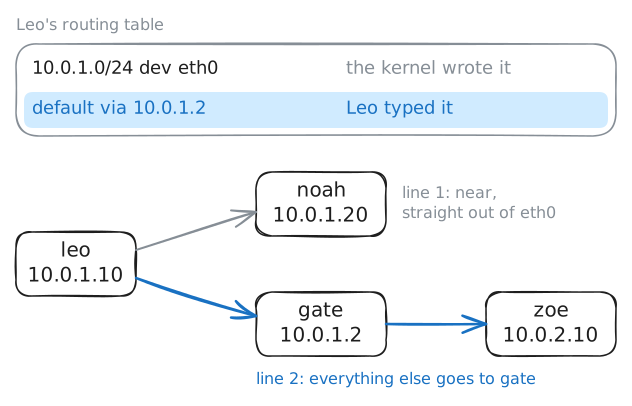
gate, and Leo's machine doesn't know that yet.The routing table holds that knowledge. It is a list of rules, each one saying where messages for some set of addresses should go.
You have read one before, on a machine somebody else set up. This time you see where each line comes from. Leo hasn't typed a single route, so what is in the table?
Read it first. Then add the line that matters most: a default route. It hands every message that isn't for a near address to one router, his default gateway.
defaultmatches every address, so that one line covers the whole world beyond his own network.Leo's gateway is
gate, at10.0.1.2. On a real network that address comes from whoever runs it, or fromip routeon a machine that already works.leo:~# ip route leo:~# ip route add default via 10.0.1.2 leo:~# ping -c 1 10.0.2.10
-
Give it names
Leo can reach any address now. People don't type addresses, though, and the page he wants is at
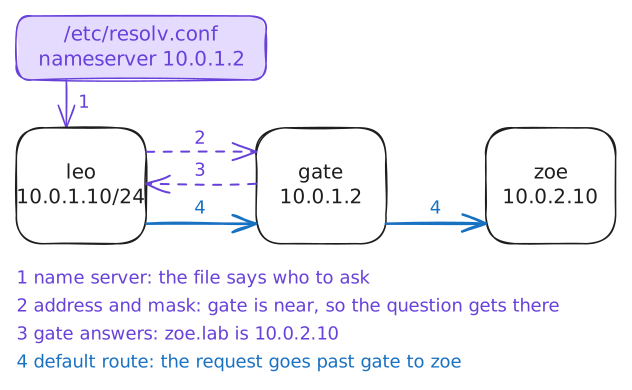
zoe.lab.When a program meets a name, the system asks a DNS server for the address. Linux learns which server to ask from one plain text file,
/etc/resolv.conf.The file takes a line that starts with
nameserver, then the server's address. On this networkgateanswers names too, at10.0.1.2. DHCP normally writes this file for you, and here you write it yourself.So far you have changed the kernel with commands. This setting is different: you edit a file, and that is how most Linux settings work. They are plain text, mostly under
/etc, and every one of them is there to read.Try the name first and read how it fails. Then edit the file.
leo:~# curl -sS -m 5 http://zoe.lab/
leo:~# curl -sS -m 5 http://zoe.lab/
-
Check the list that comes first
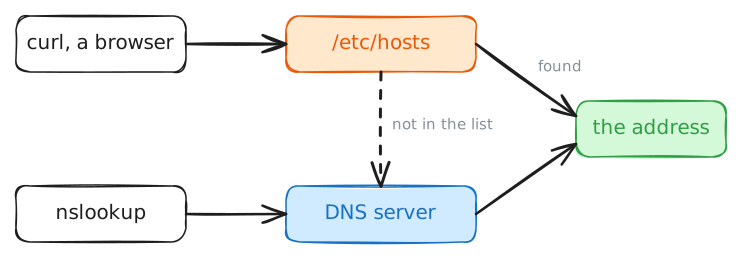
Before DNS existed, every machine on the early internet kept its own list of names and addresses. Linux still has that list,
/etc/hosts, and Leo's own name is in it. Each line is an address, then a name.The list stayed because it is handy. It lets you try a new server under its real name before the name goes live, or name the few machines on a small network with no DNS server at all.
The list can also disagree with DNS. Noah keeps a test copy of Zoe's site, so Leo adds a line that points
zoe.labat Noah's machine. The list then says one thing, and DNS still says another.Ask both ways:
curlfor the page, andnslookupfor the address.leo:~# curl -sS -m 5 http://zoe.lab/ leo:~# nslookup zoe.lab
-
Make it last
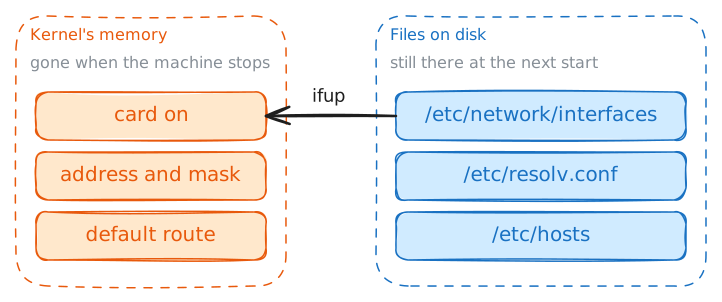
Most of what you typed lives in the kernel's memory. The card being on, the address and the route all vanish when the machine stops.
/etc/resolv.confis a file, so it stays.The lab now wipes the rest, the way a restart does. To last, those settings go in a file the machine reads as it starts. Linux comes in many versions, called distributions, and this is the part of network configuration where they differ.
- Alpine and Debian:
/etc/network/interfaces, read byifup. - Ubuntu: settings files in
/etc/netplan/. - Fedora and Red Hat: NetworkManager, a background program you drive with
nmcli.
This machine runs Alpine, and its file needs five lines.
auto eth0means bring the card up at start.iface eth0 inet staticmeanseth0, IPv4, fixed settings.The three lines under it are the address, the mask and the gateway you typed.
ifup eth0reads the file, and starting the machine does the same.-vprints what it does.leo:~# ip -br -4 addr leo:~# ifup -v eth0 leo:~# curl -sS -m 5 http://zoe.lab/
- Alpine and Debian:
Run these steps on real machines