 Hack the Route Start learning Open app
The idea
Rosa added a name for the new library site at Northfield School. It opens, then it fails, then it opens again, and the file she edited looks fine.
Steps
-
Read the file behind a zone
Rosa looks after the names of Northfield School, and all of it starts in one text file. In the DNS lab, a zone was a part of the name tree that one server answers for.
Here is that idea from the inside. The zone
northfield.labis a file onprimaryServer, and the server reads its answers from it.Each line in the file is a DNS record, the same thing
digprints: a name, a type and a value. The format dates from the first DNS standards of the 1980s, and name servers still read it.Many people never see this file, because hosting companies show the same records as rows on a web page. The rows mean the same thing, so what you read here carries over.
Read the file. Then ask the server for one of its names, and for the servers that hold the zone.
@10.0.2.30sends each question to the server that reads this file.primaryServer:~# cat /etc/bind/zones/northfield.lab.zone laptop:~# dig +noall +answer @10.0.2.30 portal.northfield.lab laptop:~# dig +noall +answer @10.0.2.30 northfield.lab NS
-
Add a name, and catch the typo
Rosa needs
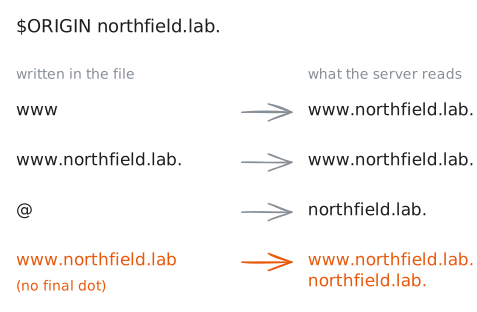
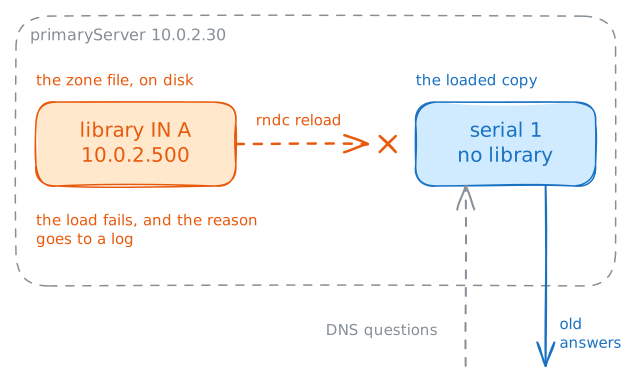
library.northfield.labfor the new library site, on the web server at10.0.2.50. In the file that is one line, and she used the short form:library IN A 10.0.2.50. With no dot at the end,$ORIGINfinishes the name.Saving the file changes nothing for anyone. The server read the zone into memory when it started, and it answers from memory until something tells it to read the file again. That something is
rndc, the remote control for BIND, the name server program in this lab.Her first try had a slip, and the lab adds the line the way she typed it:
library IN A 10.0.2.500. No part of an IPv4 address goes above 255, so that line can't load.Run
rndc reload, as she did. Then runnamed-checkzone, which reads a zone file the way the server does and reports what it finds. Last, fix the line in the editor: saving checks the file and reloads the zone.primaryServer:~# rndc reload northfield.lab primaryServer:~# named-checkzone northfield.lab /etc/bind/zones/northfield.lab.zone
-
Find out why the second server says no
Rosa's reply came from
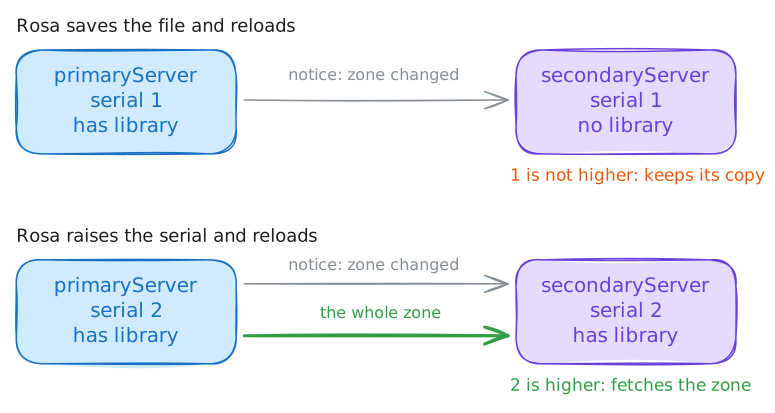
10.0.2.30. The zone has another server,10.0.2.31, and resolvers pick either one.A zone should have at least two name servers, so that its names survive one server dying. One holds the file, and it's called the primary, and the others are secondaries. Each secondary keeps a copy it fetched from the primary, and answers with
aaas if the copy were its own.Copying a zone this way is a zone transfer. A secondary decides whether to copy by one number, the serial in the
SOAline. A higher serial on the primary means a new copy, anything else means the copy it has is current, and it never compares the records.Rosa added a line and left the serial at
1. First ask the secondary aboutlibrary. The lab then raises the serial by one.Next, reload with a capture running on the secondary, which records each packet that reaches it. The capture keeps running for a few seconds after the reload, because BIND can wait up to 5 seconds before it acts.
laptop:~# dig +norecurse @10.0.2.31 library.northfield.lab
primaryServer:~# rndc reload northfield.lab
laptop:~# dig +norecurse @10.0.2.31 library.northfield.lab
-
Let another resolver do the walking
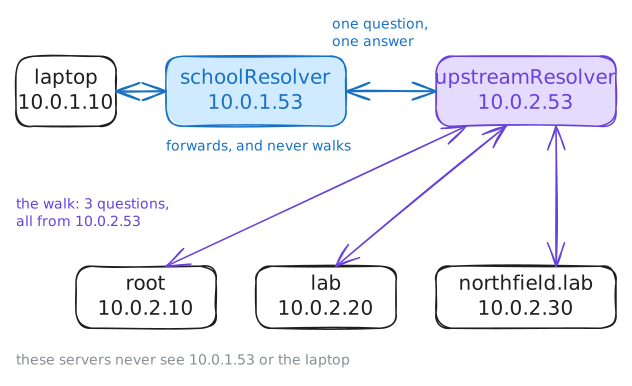
So far you have worked on the side of DNS that holds names. The other side asks questions, and Rosa runs that too: every laptop in the school uses
schoolResolver, at10.0.1.53.It doesn't walk the tree, as the resolvers in the DNS lab did. It passes the work on to another resolver, called its upstream.
A resolver that works this way is a forwarder. Here the upstream is
10.0.2.53.A forwarder has one server to reach and little to do, so it suits a small box. Your home Router almost certainly works this way: the DNS server your laptop uses is often the router itself, and it passes each question to your internet provider or to a public resolver. The upstream serves many people, so its cache is full of answers.
Read the setting on
schoolResolver. Then the lab clears both caches, and you ask for a name with a capture on each resolver. Last, ask again.schoolResolver:~# unbound-control list_forwards laptop:~# dig +noall +answer www.northfield.lab laptop:~# dig +noall +answer www.northfield.lab
-
Block a name, and see who it binds
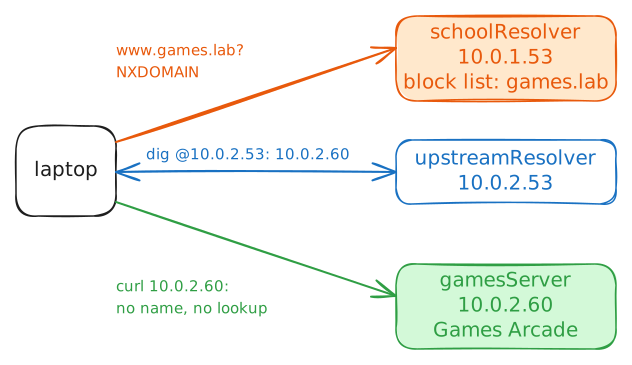
The school doesn't want
games.labon its network, and a resolver is a handy place to say no, because nearly everything starts with a lookup. A filtering resolver keeps a list of names and checks it first. When a name is on the list, it answers on the spot, and no question leaves.The same idea runs at many sizes: schools, companies, a Pi-hole box that drops adverts on a home network, and public resolvers such as Quad9,
9.9.9.9, that refuse known malware domains.On
schoolResolver, the whole list is one line in/etc/unbound/unbound.conf:local-zone: "games.lab." always_nxdomain.Test it the way a student would: ask the school's resolver for
www.games.lab, with a capture on that resolver. Then ask the upstream,10.0.2.53, for the same name, and fetch the site by its address.laptop:~# dig www.games.lab laptop:~# dig +noall +answer @10.0.2.53 www.games.lab laptop:~# curl -sS -m 5 http://10.0.2.60/
-
Hide the question from the path
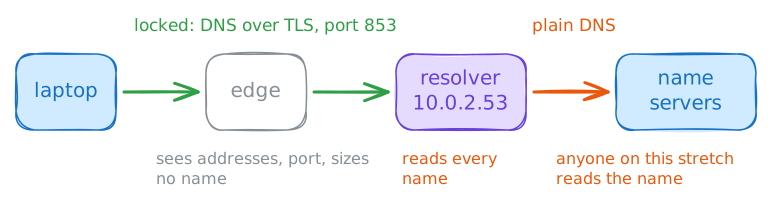
Every DNS question so far has crossed the network as plain text. You have read the names in the captures, and so can anyone in between: the Wi-Fi operator, the internet provider, any router on the way. They could change an answer too, because nothing in plain DNS proves where it came from.
Encrypted DNS puts the same question inside TLS, the encryption HTTPS uses, which the HTTPS lab opens up. For now, picture a locked pipe from the laptop to the resolver.
DNS over TLS (DoT) has its own port, 853. DNS over HTTPS (DoH) sends questions as web requests on port 443, mixed in with other web traffic.
edgeis the router between the school and10.0.2.53, so a capture on it shows what a router on the path can see. Ask the same question twice: plain, then withdig +tls, which uses DoT. The second capture prints each packet as text, and the lab clears the resolver's cache first, to show its walk too.laptop:~# dig +noall +answer @10.0.2.53 www.northfield.lab laptop:~# dig +tls @10.0.2.53 www.northfield.lab
Run these steps on real machines