 Hack the Route Start learning Open app
The idea
Ruth looks after three library routers. Keep every router's config in git each night, use a diff to find the two lines that broke a branch over the weekend, and learn why pasting the old config back doesn't fix it.
Steps
-
A router's config is a page of text
Fernhill Libraries has three branches, Elm Street, Oak Lane and Ash Road, with a router each:
elm,oakandash. The catalogue server sits at Elm Street, and the self-checkout kiosk at Oak Lane looks books up on it throughoakandelm.Last spring a router died, and Ruth set up the spare from memory. It took an afternoon, and she missed a route. Next time she wants a copy of each router's setup, kept off the router.
What would that copy hold? These routers run FRR, routing software for Linux with a Cisco-style command line.
On them, as on Cisco's, every setting is written as the command that sets it, and the router keeps the list it runs on: its running config.
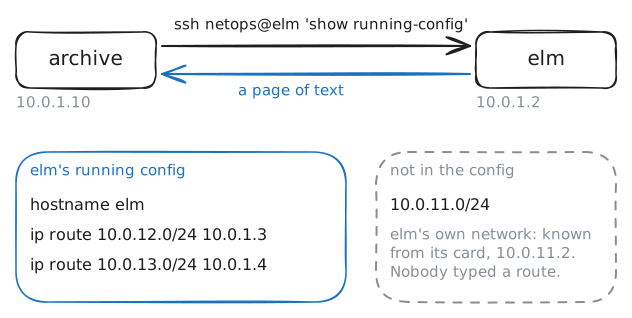
show running-configprints it.Ruth's machine,
archive, logs in to each router over SSH with a key, and a login lands in the router's own command line. Sossh netops@elm 'show running-config'runs that one command onelmand prints the answer onarchive.archive:~# ssh netops@elm 'show running-config'
-
Every router, into git
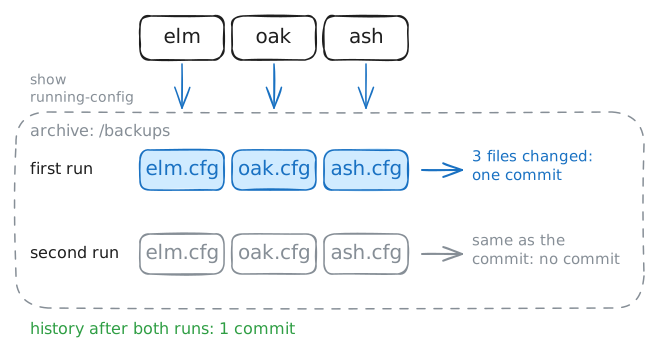
One copy is a start. Ruth wants a fresh copy of all three every night, and a way to see what changed between nights. Files in a folder hold the copies, and git remembers every version of them.
/backupsonarchiveis an empty git repository: a folder whose history git keeps./root/backup.shfills it:for router in elm oak ash; do ssh -o BatchMode=yes netops@$router 'show running-config' \ | grep -v -e '^Building configuration' -e '^Current configuration' -e '^$' > $router.cfg done git add *.cfg if git diff --cached --quiet; then echo "No router changed since the last backup: nothing new to save." else git commit -q -m "Backup $(date '+%a %d %b %H:%M')" git show --stat --format='Saved %h: %s' HEAD fiThe loop writes
elm.cfg,oak.cfgandash.cfg, minus the two header lines and the blank ones.-o BatchMode=yesmakessshfail instead of waiting at a password prompt nobody will answer.git addpicks the files to keep,git diff --cached --quietasks whether any of them differs from the last saved version, andgit commitsaves them together as one version, a commit, with a short id.Run it, then run it again straight away.
archive:~# /root/backup.sh
archive:~# /root/backup.sh
-
What changed over the weekend?
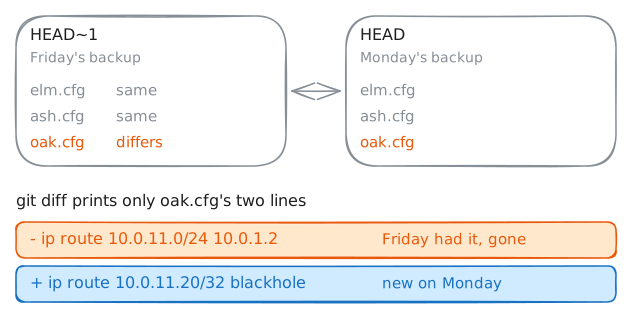
Monday morning, Oak Lane calls: the kiosk can't look up any books. Nobody admits to changing anything, but Leo, a contractor, tidied up the routers on Saturday. Say the backup you took a moment ago was Friday night's.
Check the kiosk first. Then take a fresh backup and ask git what changed between the last two:
git -C /backups diff HEAD~1 HEAD-C /backupsruns git in that repository.HEADis the newest commit, the backup you're about to take, andHEAD~1is the one before it, Friday's.git diffprints the lines that differ:-in front of a line the older version had,+in front of one the newer version has, and a few unchanged lines around each change. Thediff --git,---,+++and@@lines at the top only say which file, and where in it.kiosk:~# curl -sS -m 3 http://10.0.11.20/ archive:~# /root/backup.sh archive:~# git -C /backups diff HEAD~1 HEAD
-
Put the old lines back
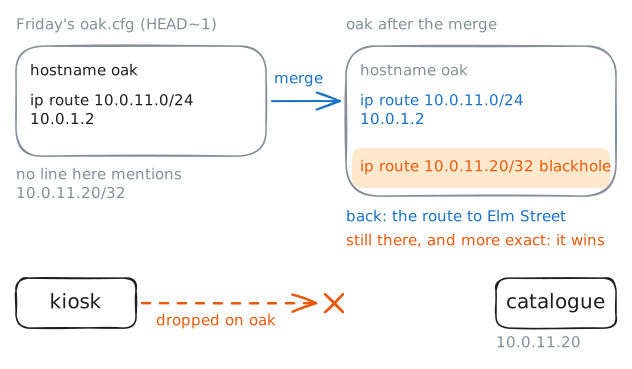
The obvious fix: give
oakits Friday config again./root/restore.shdoes that.restore.sh oak HEAD~1takesoak.cfgas it was in commitHEAD~1and types its lines intooak's configuration mode (configure terminal, where typed lines change the setup) over SSH:MODE=merge ... wanted=$(git show "$commit:$router.cfg" | settings) || exit 1 running=$(ssh -o BatchMode=yes netops@$router 'show running-config' | settings) send=$wanted if [ "$MODE" = replace ]; then ... figit show HEAD~1:oak.cfgprints a file as it was in that commit, andsettingskeeps the lines that set something, sorted. InMODE=merge, the script sends every one of those lines, as if you'd pasted them in. A line the router already has changes nothing, and a missing one comes back.archive:~# /root/restore.sh oak HEAD~1 kiosk:~# curl -sS -m 3 http://10.0.11.20/
-
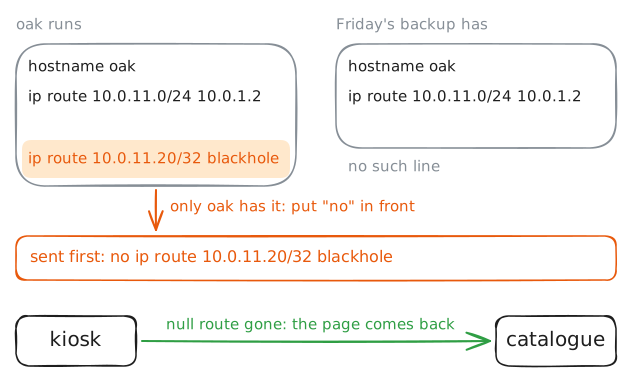
Replace: make the router match the backup
A replace makes the router's config exactly the backup: lines the backup doesn't have come out, and missing lines go in. Cisco calls it
configure replace, Juniperload override.restore.shhas a replace mode:if [ "$MODE" = replace ]; then # Each line only the router has, turned around: 'X' becomes 'no X', and 'no X' becomes 'X'. extra=$(comm -23 <(echo "$running") <(echo "$wanted") | sed -e 's/^no //;t' -e 's/^/no /') # Removals go first, so a setting the backup sets again (a new hostname) isn't cleared after it. [ -n "$extra" ] && send="$extra $send" ficomm -23compares two sorted lists and keeps the lines found only in the first: whatoakruns that the backup lacks. On these routers, as on Cisco's,noin front of a setting takes it away, so thesedputsnoin front of each extra line, or takes it off a line that already starts with one.Change
MODE=mergetoMODE=replace. Saving runsrestore.sh oak HEAD~1again.kiosk:~# curl -sS -m 3 http://10.0.11.20/ archive:~# /root/restore.sh oak HEAD~1
Run these steps on real machines